Convert pixel to dp or dip and dp to pixel in Android

If we need to set dimension of any view from the java file, it will use pixel as default unit. Where as in XML file we use dp or dip(density independent pixel). So 100 dp is not equal to 100 pixel.

Screenshot_20160623-151106
200dp = 525pixel in this case

Android uses density factor to provide support to different devices with different screensize. So the conversion works as explained below.

First we will check the conversion of dp to pixel. Here dp is density independent and pixel is dependent on density. So if we need to find pixel from give dp, we need to multiply it with the density of the device.

So the equation will be like this

pixel = dp * (density of the device);

Here is the function to convert dp to pixel.

public static float dpTopixel(Context c, float dp) {
  float density = c.getResources().getDisplayMetrics().density;
  float pixel = dp * density;
  return pixel;
}

Now we will convert pixel to dp. Here we need to divide the pixel with the density of the device so the result will become independent of density(dp).

So the equation will be like this

dp = pixel / (density of the device);

Here is the function to convert pixel to dp.

public static float pixelTodp(Context c, float pixel) {
  float density = c.getResources().getDisplayMetrics().density;
  float dp = pixel / density;
  return dp;
}

Now if you want to use this value as width or height in any of your view’s LayoutParams, it will ask you for Integer(int) value and above functions will return you Float(float) value. So you have to do following thing to convert it to Integer(int).

int width = (int) dpTopixel(MainActivity.this, 200);

Please comment if you find any mistake or want to give feedback.

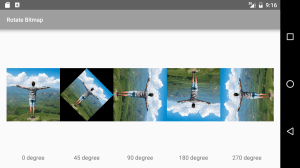
Rotate image(bitmap) to any angle in Android

In many image related Android applications, we may need to rotate the bitmap(not ImageView). Here I added the code below to rotate the image at any possible angle using Matrix.

Screenshot_20160619-211636
rotation of image resulted from below code
Bitmap bInput/*your input bitmap*/, bOutput;
float degrees = 45;//rotation degree
Matrix matrix = new Matrix();
matrix.setRotate(degrees);
bOutput = Bitmap.createBitmap(bInput, 0, 0, bInput.getWidth(), bInput.getHeight(), matrix, true);

Flip image(bitmap) horizontally and vertically in Android

In any photo related Android application, flipping image is necessary feature. So here I wrote the code to flip the image in both horizontal as well as vertical direction.

Screenshot_20160619-211419
Result of the below code

Code for vertical flip bitmap:

Bitmap bInput/*your input bitmap*/, bOutput;
Matrix matrix = new Matrix();
matrix.preScale(1.0f, -1.0f);
bOutput = Bitmap.createBitmap(bInput, 0, 0, bInput.getWidth(), bInput.getHeight(), matrix, true);

Code for horizontal flip bitmap:

Bitmap bInput/*your input bitmap*/, bOutput;
Matrix matrix = new Matrix();
matrix.preScale(-1.0f, 1.0f);
bOutput = Bitmap.createBitmap(bInput, 0, 0, bInput.getWidth(), bInput.getHeight(), matrix, true);

Various material designs for Button in Android

It is very important to update/create your app with material design. It will boost up your app downloads compare to older design.

Using AppCompat library you can design Button in your app in many ways. Here is demonstrate you 6 different kind of buttons with example code so you can directly integrate them in your code.

Screenshot_2016-04-28-23-52-27

1. Simple Button

<Button
  android:layout_width="match_parent"
  android:layout_height="wrap_content"
  android:text="Simple Button" />

2. Coloured Button

<Button
  style="@style/Widget.AppCompat.Button.Colored"
  android:layout_width="match_parent"
  android:layout_height="wrap_content"
  android:layout_marginTop="10dp"
  android:text="Colored Button" />

3. Borderless Button

<Button
  style="@style/Widget.AppCompat.Button.Borderless"
  android:layout_width="match_parent"
  android:layout_height="wrap_content"
  android:layout_marginTop="10dp"
  android:text="Borderless Button" />

4. Borderless Coloured Button

<Button
  style="@style/Widget.AppCompat.Button.Borderless.Colored"
  android:layout_width="match_parent"
  android:layout_height="wrap_content"
  android:layout_marginTop="10dp"
  android:text="Borderless Colored Button" />

5. Simple Button Without Shadow

<Button
  android:layout_width="match_parent"
  android:layout_height="wrap_content"
  android:stateListAnimator="@null"
  android:layout_marginTop="10dp"
  android:text="Simple Button Without Shadow" />

6. Coloured Button Without Shadow

<Button
  style="@style/Widget.AppCompat.Button.Colored"
  android:layout_width="match_parent"
  android:layout_height="wrap_content"
  android:stateListAnimator="@null"
  android:layout_marginTop="10dp"
  android:text="Colored Button Without Shadow" />

Download Source Code: https://github.com/dakshbhatt21/a-computer-engineer

Upload image from Android app to server using PHP without any library

Image uploading is necessary in any Android app now a days.
We can upload image to our server from the Android app. Here I used PHP at the server side to catch and save the image file.

Here we did it without using any kind of external library. So you can directly use it in your project without any hassle.

First we pick the image from the gallery. You can checkout my article, “Pick image from gallery before and after KITKAT version in Android” and get the path of the image file in the “path” variable.

Then use following code snippet to upload that image to the server.

String lineEnd = "\r\n";
String twoHyphens = "--";
String boundary = "*****";
try {
  connectURL = new URL("http://example.com/imageupload.php");
  HttpURLConnection conn = (HttpURLConnection) connectURL.openConnection();
  conn.setDoInput(true);
  conn.setDoOutput(true);
  conn.setUseCaches(false);
  conn.setRequestMethod("POST");
  conn.setRequestProperty("Connection", "Keep-Alive");
  conn.setRequestProperty("Content-Type", "multipart/form-data;boundary=" + boundary);

  DataOutputStream dos = new DataOutputStream(conn.getOutputStream());
  dos.writeBytes(twoHyphens + boundary + lineEnd);

  HashMap<String, String> params = new HashMap<>();
  params.put("key", "value");	//post params that you want yo send
  StringBuilder result = new StringBuilder();
  for (Map.Entry<String, String> entry : params.entrySet()) {
    result.append("Content-Disposition: form-data; name=\"" + entry.getKey() + "\"" + lineEnd);
    result.append(lineEnd);
    result.append(entry.getValue());
    result.append(lineEnd);
    result.append(twoHyphens + boundary + lineEnd);
  }

  dos.writeBytes(result.toString());
  if (!String.valueOf("").equals(path)) {
    dos.writeBytes("Content-Disposition: form-data; name=\"" + "picture" + "\";filename=\"" + "picture.jpg" + "\"" + lineEnd);
    dos.writeBytes(lineEnd);
    fis = new FileInputStream(path);
    int bytesAvailable = fis.available();

    int maxBufferSize = 8192;
    int bufferSize = Math.min(bytesAvailable, maxBufferSize);
    byte[] buffer = new byte[bufferSize];

    int bytesRead = fis.read(buffer, 0, bufferSize);

    while (bytesRead > 0) {
      dos.write(buffer, 0, bufferSize);
      bytesAvailable = fis.available();
      bufferSize = Math.min(bytesAvailable, maxBufferSize);
      bytesRead = fis.read(buffer, 0, bufferSize);
    }
    dos.writeBytes(lineEnd);
    dos.writeBytes(twoHyphens + boundary + lineEnd);
    fis.close();
  }
  dos.flush();

  InputStream is = conn.getInputStream();

  int ch;

  StringBuffer b = new StringBuffer();
  while ((ch = is.read()) != -1) {
    b.append((char) ch);
  }
  json = b.toString();
  dos.close();
} catch (MalformedURLException ex) {
} catch (IOException ioe) {
}

Make sure that you call this code snippet inside of AsyncTask or Thread. Once you get the response from the server, your image has been uploaded to the server.

Now here is the code for PHP to move the uploaded to the same directory as php file.

    move_uploaded_file($_FILES['picture']['tmp_name'], $_FILES['picture']['name']);

And done! You can find your uploaded image in “images” directory on your server.

Add “Like Us on Facebook” button to your Android App

It’s really a good idea to include the link to your Facebook page in the Android app. It will help you to keep in touch with the users of your app.

Below is the code you should put in the click event of the “Like Us on Facebook” button.

String fbPageId = "149483785425721";
String fbPageUrl = "https://www.facebook.com/bmicalculatorapp";

try {
  getPackageManager().getPackageInfo("com.facebook.katana", 0);
  Intent fb = new Intent(Intent.ACTION_VIEW, Uri.parse("fb://page/" + fbPageId));
  startActivity(fb);
} catch (Exception e) {
  Intent fb = new Intent(Intent.ACTION_VIEW,  Uri.parse(fbPageUrl));
  startActivity(fb);
}

You just need to replace the fbPageId and fbPageUrl in above code. You can find the page id of your Facebook page in Your Page -> Settings -> Page Info section.

Add, hide, show, highlight items in NavigationView in Android

You can programmatically add, hide or show items in NavigationView in Android.

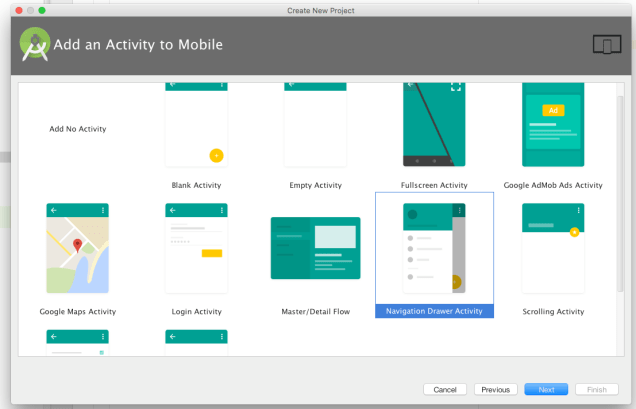
First set your Android Project with NavigationView from Android Studio.

create new android project with navigation view in android

Follow the below code for that.

NavigationView navigationView = (NavigationView) findViewById(R.id.nav_view);

//add new item at the end of NavigationView menu
MenuItem mi = navigationView.getMenu().add(Menu.NONE, Menu.NONE, Menu.NONE, "Menu Item 1");

//set icon for that menu item
mi.setIcon(R.drawable.ic_icon_menu_item);

//hide the menuitem
mi.setVisible(false);

//show the menuitem
mi.setVisible(true);

//highlight the menuitem
mi.setChecked(true);

//un-highlight the menuitem
mi.setChecked(false);

Limit number range in EditText in Android using InputFilter

In many applications, it’s necessary to restrict user input to some fix number range like months(1-12), inches(1-12), days(1-30, 1-31), etc. At that time we can use InputFilter to filter the input provided by user.

Let’s start with the XML part.

<EditText
  android:id="@+id/edt_month"
  android:layout_width="match_parent"
  android:layout_height="wrap_content"
  android:layout_margin="5dp"
  android:hint="month"
  android:inputType="number" />

Now you need to create on Class for InputFilter with minimum and maximum values.

Here is the class InputFilterMinMax.

public class InputFilterMinMax implements InputFilter {
  private int min, max;

  public InputFilterMinMax(int min, int max) {
    this.min = min;
    this.max = max;
  }

  public InputFilterMinMax(String min, String max) {
    this.min = Integer.parseInt(min);
    this.max = Integer.parseInt(max);
  }

  @Override
  public CharSequence filter(CharSequence source, int start, int end, Spanned dest, int dstart, int dend) {
    try {
      int input = Integer.parseInt(dest.toString() + source.toString());
      if (isInRange(min, max, input))
        return null;
      } catch (NumberFormatException nfe) { }
        return "";
  }

  private boolean isInRange(int a, int b, int c) {
    return b > a ? c >= a && c <= b : c >= b && c <= a;
  }
}

Now you all set to use this class in your app. Add the following line in your code to apply this.

EditText edtMonth = (EditText) findViewById(R.id.edt_month);
edtMonth.setFilters(new InputFilter[]{new InputFilterMinMax("1", "12")});

Download Source Code: https://github.com/dakshbhatt21/a-computer-engineer

Implement SwipeRefreshLayout in Android

You might have experienced SwipeRefreshLayout in the last few updates of Chrome browser. You need to swipe from top to halfway and one circle came down with arrow rotating in it. Once you swipe enough it will start refreshing the page and disappear once the page is updated.

It’s SwipeRefreshLayout provided in android-sdk support library v4. Now we see the implementation part for this.

First you have to wrap the element you want to swipe like if you want ListView, GridView or any other view to refresh on swipe, enclose it in SwipeRefreshLayout as below.

<android.support.v4.widget.SwipeRefreshLayout
  xmlns:android="http://schemas.android.com/apk/res/android"
  android:id="@+id/swipe_refresh_layout"
  android:layout_width="match_parent"
  android:layout_height="wrap_content">

  <ListView
    android:id="@+id/list"
    android:layout_width="match_parent"
    android:layout_height="match_parent"
    android:layout_margin="10dp"
    android:horizontalSpacing="10dp"
    android:verticalSpacing="10dp" />
</android.support.v4.widget.SwipeRefreshLayout>

Now from the the .java file make the following changes to implement it.

mSwipeRefreshLayout = (SwipeRefreshLayout) findViewById(R.id.swipe_refresh_layout);
mList = (ListView) findViewById(R.id.list);

mSwipeRefreshLayout.setOnRefreshListener(new SwipeRefreshLayout.OnRefreshListener() {
  @Override
  public void onRefresh() {
    mSwipeRefreshLayout.setRefreshing(true);
    ( new Handler()).postDelayed(new Runnable() {
      @Override
      public void run() {
        mSwipeRefreshLayout.setRefreshing(false);
      }
    }, 3000);
  }
});

Please leave the comments if you find any problem in above code.

Pick image from gallery before and after KITKAT version in Android

In the android application, we need to pick any image from our gallery. For that android provides some in-built intent action that can fetch us image from gallery. After Android Kitkat, Google made few changes so that we can pick image from different applications.
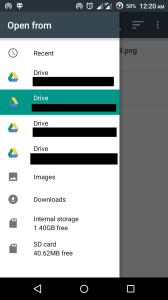
Screenshot_2016-04-25-00-20-37

The following code will open Default Picker app for KitKat, Lollipop, Marshmallow and Android N users and Gallery app for before Kitkat users to pick image.

Update:
The previous code sometimes failed to get image from external sdcard, Google Drive or sometime from internal storage too. So I did some research and integrate few answers from Stackoverflow and come up with a new solution which able to pick image from every things from that Default Picker App after Kitkat devices displayed in the image.

if (android.os.Build.VERSION.SDK_INT >= Build.VERSION_CODES.KITKAT) {
  Intent intent = new Intent(Intent.ACTION_OPEN_DOCUMENT);
  intent.addCategory(Intent.CATEGORY_OPENABLE);
  intent.setType("image/*");
  startActivityForResult(Intent.createChooser(intent, "Select Picture"), 1);
} else {
  Intent intent = new Intent();
  intent.setType("image/*");
  intent.setAction(Intent.ACTION_GET_CONTENT);
  startActivityForResult(Intent.createChooser(intent, "Select Picture"), 1);
}

Now after selecting image, we need to handle it properly to display it to ImageView or we need to get it’s path if we want to do any other operation on it. Here is the code for onActivityResult.

@TargetApi(19)
@Override
protected void onActivityResult(int requestCode, int resultCode, Intent data) {
  if (data != null && data.getData() != null && resultCode == RESULT_OK) {
    boolean isImageFromGoogleDrive = false;
    Uri uri = data.getData();

    if (isKitKat && DocumentsContract.isDocumentUri(TestActivity.this, uri)) {
      if ("com.android.externalstorage.documents".equals(uri.getAuthority())) {
        String docId = DocumentsContract.getDocumentId(uri);
        String[] split = docId.split(":");
        String type = split[0];

        if ("primary".equalsIgnoreCase(type)) {
          imgPath = Environment.getExternalStorageDirectory() + "/" + split[1];
        }
        else {
          Pattern DIR_SEPORATOR = Pattern.compile("/");
          Set<String> rv = new HashSet<>();
          String rawExternalStorage = System.getenv("EXTERNAL_STORAGE");
          String rawSecondaryStoragesStr = System.getenv("SECONDARY_STORAGE");
          String rawEmulatedStorageTarget = System.getenv("EMULATED_STORAGE_TARGET");
          if(TextUtils.isEmpty(rawEmulatedStorageTarget))
          {
            if(TextUtils.isEmpty(rawExternalStorage))
            {
              rv.add("/storage/sdcard0");
            }
            else
            {
              rv.add(rawExternalStorage);
            }
          }
          else
          {
            String rawUserId;
            if(Build.VERSION.SDK_INT < Build.VERSION_CODES.JELLY_BEAN_MR1)
            {
              rawUserId = "";
            }
            else
            {
              String path = Environment.getExternalStorageDirectory().getAbsolutePath();
              String[] folders = DIR_SEPORATOR.split(path);
              String lastFolder = folders[folders.length - 1];
              boolean isDigit = false;
              try
              {
                Integer.valueOf(lastFolder);
                isDigit = true;
              }
              catch(NumberFormatException ignored)
              {
              }
              rawUserId = isDigit ? lastFolder : "";
            }
            if(TextUtils.isEmpty(rawUserId))
            {
              rv.add(rawEmulatedStorageTarget);
            }
            else
            {
              rv.add(rawEmulatedStorageTarget + File.separator + rawUserId);
            }
          }
          if(!TextUtils.isEmpty(rawSecondaryStoragesStr))
          {
            String[] rawSecondaryStorages = rawSecondaryStoragesStr.split(File.pathSeparator);
            Collections.addAll(rv, rawSecondaryStorages);
          }
          String[] temp = rv.toArray(new String[rv.size()]);
          for (int i = 0; i < temp.length; i++)   {
            File tempf = new File(temp[i] + "/" + split[1]);
            if(tempf.exists()) {
              imgPath = temp[i] + "/" + split[1];
            }
          }
        }
      }
      else if ("com.android.providers.downloads.documents".equals(uri.getAuthority())) {
        String id = DocumentsContract.getDocumentId(uri);
        Uri contentUri = ContentUris.withAppendedId( Uri.parse("content://downloads/public_downloads"), Long.valueOf(id));

        Cursor cursor = null;
        String column = "_data";
        String[] projection = { column };
        try {
          cursor = TestActivity.this.getContentResolver().query(contentUri, projection, null, null,
null);
          if (cursor != null && cursor.moveToFirst()) {
            int column_index = cursor.getColumnIndexOrThrow(column);
            imgPath = cursor.getString(column_index);
          }
        } finally {
          if (cursor != null)
            cursor.close();
        }
      }
      else if("com.android.providers.media.documents".equals(uri.getAuthority())) {
        String docId = DocumentsContract.getDocumentId(uri);
        String[] split = docId.split(":");
        String type = split[0];

        Uri contentUri = null;
        if ("image".equals(type)) {
          contentUri = MediaStore.Images.Media.EXTERNAL_CONTENT_URI;
        } else if ("video".equals(type)) {
          contentUri = MediaStore.Video.Media.EXTERNAL_CONTENT_URI;
        } else if ("audio".equals(type)) {
          contentUri = MediaStore.Audio.Media.EXTERNAL_CONTENT_URI;
        }

        String selection = "_id=?";
        String[] selectionArgs = new String[]{ split[1] };

        Cursor cursor = null;
        String column = "_data";
        String[] projection = { column };

        try {
          cursor = TestActivity.this.getContentResolver().query(contentUri, projection, selection, selectionArgs, null);
          if (cursor != null && cursor.moveToFirst()) {
            int column_index = cursor.getColumnIndexOrThrow(column);
            imgPath = cursor.getString(column_index);
          }
        } finally {
          if (cursor != null)
            cursor.close();
        }
      }
      else if("com.google.android.apps.docs.storage".equals(uri.getAuthority()))   {
        isImageFromGoogleDrive = true;
      }
    }
    else if ("content".equalsIgnoreCase(uri.getScheme())) {
      Cursor cursor = null;
      String column = "_data";
      String[] projection = { column };

      try {
        cursor = TestActivity.this.getContentResolver().query(uri, projection, null, null, null);
        if (cursor != null && cursor.moveToFirst()) {
          int column_index = cursor.getColumnIndexOrThrow(column);
          imgPath = cursor.getString(column_index);
        }
      }
      finally {
        if (cursor != null)
          cursor.close();
      }
    }
    else if ("file".equalsIgnoreCase(uri.getScheme())) {
      imgPath = uri.getPath();
    }

    if(isImageFromGoogleDrive)  {
      try {
        Bitmap bitmap = BitmapFactory.decodeStream(getContentResolver().openInputStream(uri));
        img.setImageBitmap(bitmap);
      }
      catch (Exception e) {
        e.printStackTrace();
      }
    }
    else    {
      File f = new File(imgPath);
      BitmapFactory.Options bmOptions = new BitmapFactory.Options();
      Bitmap bitmap = BitmapFactory.decodeFile(f.getAbsolutePath(),bmOptions);
      img.setImageBitmap(bitmap);
    }
  }
  super.onActivityResult(requestCode, resultCode, data);
}

Here, images from Google Drive may not be on our device so we directly us InputStream of that image from the Google Drive and show it in the ImageView without getting it’s path. You can save it in your storage if you need to use it for any further requirement.

Please comments below if you find any mistake or having problem in implementing this code.

Download Source Code: https://github.com/dakshbhatt21/a-computer-engineer