Resize image during decode from file to Bitmap in android

java.lang.OutOfMemoryError is the nightmare for any android developer. During image operation we may get this out of memory exception any time because our app uses all the memory allocated by android system to that app so it will give you out of memory error.

We encounter this error when we try to decode larger image using its path of sdcard to Bitmap. So we can skip this error by decoding image to smaller size.

We can avoid this problem or better to say restrict it to a level by creating Bitmap of required size and not the actual size.

Images taken from camera now a days are of more than 3000 and 4000 in resolution. So if we want to display them in GridView or ListView, we have to sample them down so it won’t create OOM or does not hang the UI.

For that we will use sample size to BitmapFactory.Options while decoding the image. It will load your image in smaller size compare to the original image and save your memory.

Google suggest that sample size should be in power of 2 so the below code contains the logic of creating sample size according to the maximum size you provide and then it will load your image with the resolution near to that maximum size.

Here is the direct function I create that you can use in your project by providing the file path of your image. You can find out how get the file path of any image from this article: Pick image from gallery before and after Kitkat version in Android

private Bitmap decodeFile(String imgPath)
{
  Bitmap b = null;
  int max_size = 1000;
  File f = new File(imgPath);
  try {
    BitmapFactory.Options o = new BitmapFactory.Options();
    o.inJustDecodeBounds = true;
    FileInputStream fis = new FileInputStream(f);
    BitmapFactory.decodeStream(fis, null, o);
    fis.close();
    int scale = 1;
    if (o.outHeight > max_size || o.outWidth > max_size)
    {
      scale = (int) Math.pow(2, (int) Math.ceil(Math.log(max_size / (double) Math.max(o.outHeight, o.outWidth)) / Math.log(0.5)));
    }
    BitmapFactory.Options o2 = new BitmapFactory.Options();
    o2.inSampleSize = scale;
    fis = new FileInputStream(f);
    b = BitmapFactory.decodeStream(fis, null, o2);
    fis.close();
  }
  catch (Exception e)
  {
  }
  return b;
}

Share your views in comments!

How to draw Canvas on ImageView and save Canvas as Bitmap and store in sdcard in Android

In some of the application we draw image, text and line on Canvas object in Android. Canvas is the basic component in android for drawing objects on it.

#1 Create Canvas and display it in ImageView.
Now we create a Canvas and display its content in ImageView.

  public class MyCanvas extends View {
    public MyCanvas(Context context) {
      super(context);
      // TODO Auto-generated constructor stub
    }

    @Override
    protected void onDraw(Canvas canvas) {
      // TODO Auto-generated method stub
      super.onDraw(canvas);
      Paint pBackground = new Paint();
      pBackground.setColor(Color.WHITE);
      canvas.drawRect(0, 0, 512, 512, pBackground);
      Paint pText = new Paint();
      pText.setColor(Color.BLACK);
      pText.setTextSize(20);
      canvas.drawText("Sample Text", 100, 100, pText);
    }
  }

Now set this canvas to your ImageView using following code.

  View v = new MyCanvas(getApplicationContext());
  Bitmap bitmap = Bitmap.createBitmap(500/*width*/, 500/*height*/, Bitmap.Config.ARGB_8888);
  Canvas canvas = new Canvas(bitmap);
  v.draw(canvas);
  ImageView iv = (ImageView) findViewById(R.id.iv);
  iv.setImageBitmap(bitmap);

You can see “Sample Text” in ImageView.

#2 Save canvas bitmap to sdcard.
We will save this bitmap to sdcard so all your drawing on canvas will be stored as image.

Bitmap b = null;

//create directory if not exist
File dir = new File("/sdcard/tempfolder/");
if (!dir.exists()) {
  dir.mkdirs();
}

File output = new File(dir, "tempfile.jpg");
OutputStream os = null;

try {
  os = new FileOutputStream(output);
  b.compress(Bitmap.CompressFormat.JPEG, 100, os);
  os.flush();
  os.close();

  //this code will scan the image so that it will appear in your gallery when you open next time
  MediaScannerConnection.scanFile(this,	new String[] { output.toString() }, null,
    new MediaScannerConnection.OnScanCompletedListener() {
      public void onScanCompleted(String path, Uri uri) {
        Log.d("appname", "image is saved in gallery and gallery is refreshed.");
      }
    }
  );
} catch (Exception e) {
}

If you find any problem or doubt, please mention in comments. Do not forget to share!

Download Source Code: https://github.com/dakshbhatt21/a-computer-engineer

Draw circle shape in ImageView in Android

It is better practice to use less number of images in your android project to generate small apk file. This tutorial will help you to draw a circle of your size and set it to your ImageView or to any other View. We will use ShapeDrawable for this purpose.

Now we create ShapeDrawable of OvalShape by writing following line.

ShapeDrawable sd = new ShapeDrawable(new OvalShape());

Now we set height and width parameters of ShapeDrawable object.

sd.setIntrinsicHeight(100);
sd.setIntrinsicWidth(100);

The last thing is to set color to ShapeDrawable object.

sd.getPaint().setColor(Color.parseColor("#abcd123"));

You are ready to set this circle image to your Imageview.

ImageView iv = (ImageView) findViewById(R.id.iv);
iv.setBackground(sd);

Here is the full code.

ShapeDrawable sd = new ShapeDrawable(new OvalShape());
sd.setIntrinsicHeight(100);
sd.setIntrinsicWidth(100);
sd.getPaint().setColor(Color.parseColor("#abcd123"));
ImageView iv = (ImageView) findViewById(R.id.iv);
iv.setBackground(sd);

Add speech recognition to EditText in Android

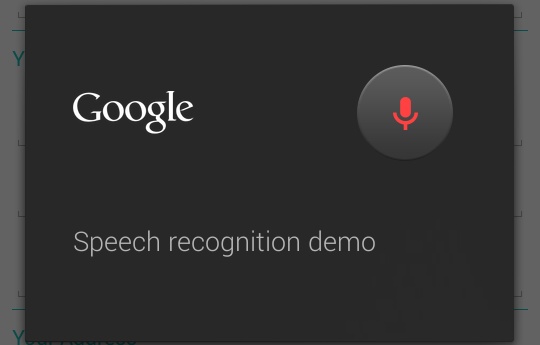
Now a days many android application has the microphone icon on the right side of EditText. When you click on it, it will ask you to speak the words you want to enter into the EditText. After you speak the word to that dialog it will automatically enter those words into the EditText. Here is the screenshot for that.

speech recognition in android

Now to open this dialog, you need to add the below code to your any of the button’s click listener.

int REQUEST_CODE = 1;
String DIALOG_TEXT = "Speech recognition demo";
Intent intent = new Intent(RecognizerIntent.ACTION_RECOGNIZE_SPEECH);
intent.putExtra(RecognizerIntent.EXTRA_PROMPT, DIALOG_TEXT);
intent.putExtra(RecognizerIntent.EXTRA_LANGUAGE_MODEL, 
                   RecognizerIntent.LANGUAGE_MODEL_FREE_FORM);
intent.putExtra(RecognizerIntent.EXTRA_MAX_RESULTS, REQUEST_CODE);
intent.putExtra(RecognizerIntent.EXTRA_LANGUAGE, "en-US");
startActivityForResult(intent, requestCode);

Now when you click the button this dialog will be open and you can speak to it. Then it will store your speech and return it to you in onActivityResult method as String. Check the following code for it.

String resultSpeech = "";
@Override
protected void onActivityResult(int requestCode, int resultcode, Intent intent) {
    super.onActivityResult(requestCode, resultcode, intent);
    ArrayList<String> speech;
    if (resultcode == RESULT_OK) {  
        if (requestCode == REQUEST_CODE) {
            speech = intent.getStringArrayListExtra(RecognizerIntent.EXTRA_RESULTS);
            resultSpeech = speech.get(0);
            //you can set resultSpeech to your EditText or TextView
        }
    }
}

Post your queries or questions in comment.

Add “Share Image to Whatsapp” button in Android

In android we can use the default share intent to share our image to the app installed in our app(code is given below), but many times we only need specific application like whatsapp, Facebook, twitter, gmail, etc. So for that we need to do little modification in default intent for sharing.

Default sharing intent in android

    Intent share = new Intent(Intent.ACTION_SEND);
    share.setType("image/jpeg");
    share.putExtra(Intent.EXTRA_STREAM, Uri.parse("file:///sdcard/path-to-your-image.jpg"));
    startActivity(Intent.createChooser(share, "Share Image"));

Now if we want to share this image only to any specific app like here is whatsapp, then we need to add filter that provides package name of the app. See the code below.

Intent share = new Intent(Intent.ACTION_SEND);
share.setType("image/jpeg");
share.putExtra(Intent.EXTRA_STREAM, Uri.parse("file:///sdcard/path-to-your-image.jpg"));
share.setPackage("com.whatsapp");//package name of the app
startActivity(Intent.createChooser(share, "Share Image"));

Now you can set package name of any app that can able to share image like Facebook, twitter, gmail, etc.

Download Source Code: https://github.com/dakshbhatt21/a-computer-engineer

Add “Rate This App” button to your Android App

Many time in out Android app, we need to open our page on Google Play Store within the app. And it is also helpful to encourage people to rate our application. So we can put a button or dialog in our app that user can use to rate our app on Google Play Store.

For that first we check that if the user device has the play store installed in their device or not. Because many device and tablets does not have play store app in their device. So we will use try catch here so if the Play Store is not available we can open the app in browser from catch part.

try {
  startActivity(new Intent(Intent.ACTION_VIEW, 
      Uri.parse("market://details?id=" + getPackageName())));
} 
catch (android.content.ActivityNotFoundException anfe) {
  startActivity(new Intent(Intent.ACTION_VIEW, 
      Uri.parse("http://play.google.com/store/apps/details?id=" + getPackageName())));
}

Now if the device has the play store, we will directly open our app in play store app. If the play store are not found in the device it will open in browser. If you have more than one browser, it will prompt you to choose one.

startActivity(new Intent(Intent.ACTION_VIEW, 
      Uri.parse("http://play.google.com/store/apps/details?id=" + getPackageName())));

Here is the full code that you can use in your button onClick event.

btnRateApp.setOnClickListener(new OnClickListener() {
  @Override
  public void onClick(View v) {
    try {
      startActivity(new Intent(Intent.ACTION_VIEW, 
        Uri.parse("market://details?id=" + getPackageName())));
    } 
    catch (android.content.ActivityNotFoundException anfe) {
      startActivity(new Intent(Intent.ACTION_VIEW, 
        Uri.parse("http://play.google.com/store/apps/details?id=" + getPackageName())));
    }
  }
});

I also make a function that you can include in your file and call it from any onClick event of button, make sure you pass the package name as argument.

public void rateApp(String packageName) {
  try {
    startActivity(new Intent(Intent.ACTION_VIEW, 
      Uri.parse("market://details?id=" + packageName)));
  } 
  catch (android.content.ActivityNotFoundException anfe) {
    startActivity(new Intent(Intent.ACTION_VIEW, 
      Uri.parse("http://play.google.com/store/apps/details?id=" + packageName)));
  }
}

Check if internet is available in Android

Many time in the Android app we need to fetch data from any webservices in JSON or XML or in any other format but during unavailability of internet we need to display specific message like no internet available or show offline data.

For that we need to use ConnectivityManager system service as follows.

ConnectivityManager cm = (ConnectivityManager) con.getSystemService(Context.CONNECTIVITY_SERVICE);

Then we can get network information from above ConnectivityManager as follows using NetworkInfo.

NetworkInfo ni = cm.getActiveNetworkInfo();

Now this NetworkInfo have the following network states displyed in following table.

NetworkInfo.State CONNECTED
NetworkInfo.State CONNECTING
NetworkInfo.State DISCONNECTED
NetworkInfo.State DISCONNECTING
NetworkInfo.State SUSPENDED
NetworkInfo.State UNKNOWN

Now we have to check for the connected state of the network.

ni.getState() == NetworkInfo.State.CONNECTED;

From the above conclusion, finally we have come up with the following function that directly checks for the availability of the internet.

public boolean isNetworkAvailable() {
	ConnectivityManager cm = (ConnectivityManager) getApplicationContext().getSystemService(Context.CONNECTIVITY_SERVICE);
	NetworkInfo ni = cm.getActiveNetworkInfo();
	return ni != null && ni.getState() == NetworkInfo.State.CONNECTED;
}

Turn on and turn off flash light programmatically in Android

Most of times we need to use flash light of our Android device as torch so we have to start camera or other application. But Android provide access to the camera flash in our application so you can turn it on and off using code. Here I’ll show you how to turn on and off it programmatically.

First of all we need to check if the device has the flash light or not. For that we use following condition from PackageManager.

Here is the function for turn on the flash light.

Camera cam = null;
public void turnOnFlashLight() {
    try {
        if (getPackageManager().hasSystemFeature(PackageManager.FEATURE_CAMERA_FLASH)) {
            cam = Camera.open();
            Parameters p = cam.getParameters();
            p.setFlashMode(Parameters.FLASH_MODE_TORCH);
            cam.setParameters(p);
            cam.startPreview();
        }
    } catch (Exception e) {
        e.printStackTrace();
        Toast.makeText(getBaseContext(), "Exception throws in turning on flashlight.", Toast.LENGTH_SHORT).show();
    }
}

And to turn of flashlight use following piece of code.

public void turnOffFlashLight() {
    try {
        if (getPackageManager().hasSystemFeature(PackageManager.FEATURE_CAMERA_FLASH)) {
            cam.stopPreview();
            cam.release();
            cam = null;
        }
    } catch (Exception e) {
        e.printStackTrace();
        Toast.makeText(getBaseContext(), "Exception throws in turning off flashlight.", Toast.LENGTH_SHORT).show();
    }
}

Here we use Camera class for flashlight.

Here we need to add the following permission to the manifest file. The last one is not generally used in 3rd party apps, it is just use for testing in system apps as per docs.

<uses-permission android:name="android.permission.CAMERA" />
<uses-permission android:name="android.permission.FLASHLIGHT"/>
<uses-permission android:name="android.permission.HARDWARE_TEST" />

Here you can download full code from github: Flashligh Demo

You can download demo app from Google Play: Flashlight Demo

How to check current sound profile in Android

Many times in Android development, we need to check the current sound profile. Like it is in normal mode, vibrate mode or silent mode. So for that in Android, they provide AudioManager class which have method that return the current sound profile. Below is the example of it.

AudioManager profileCheck = (AudioManager)getSystemService(Context.AUDIO_SERVICE);

if (profileCheck.getRingerMode() == AudioManager.RINGER_MODE_NORMAL)
    Toast.makeText(getApplicationContext(), "Normal", Toast.LENGTH_LONG).show();
else if (profileCheck.getRingerMode() == AudioManager.RINGER_MODE_VIBRATE)
    Toast.makeText(getApplicationContext(), "Vibrate", Toast.LENGTH_LONG).show();
else if (profileCheck.getRingerMode() == AudioManager.RINGER_MODE_SILENT)
    Toast.makeText(getApplicationContext(), "Silent", Toast.LENGTH_LONG).show();

According to the sound profile you can manage your further actions.